
Once you have the ZAIP Remote Connector installed on your device, you can reset your password any time of the day in these 5 easy steps!
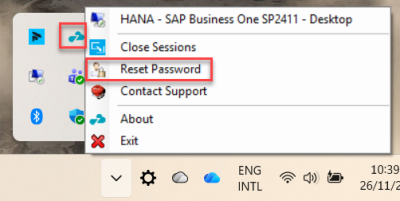
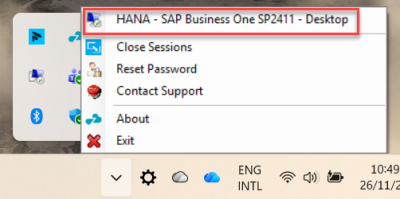
1) Click on the ZAIP Remote Connector in your Taskbar to open the Menu options. Select the Reset Password option.
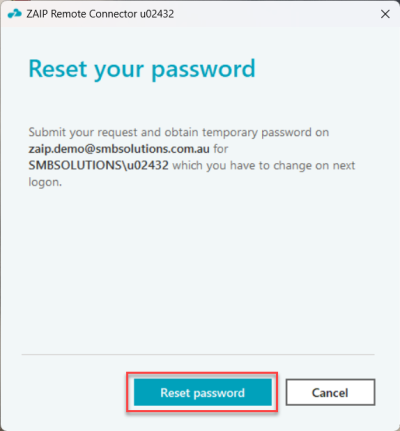
2) A new pop-up will appear. Click Reset password.
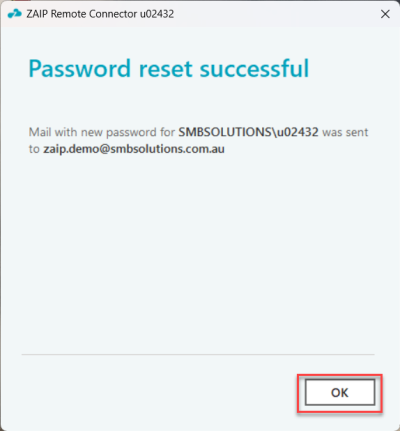
3) Once the password reset has been actioned, the pop-up will change to this success message.
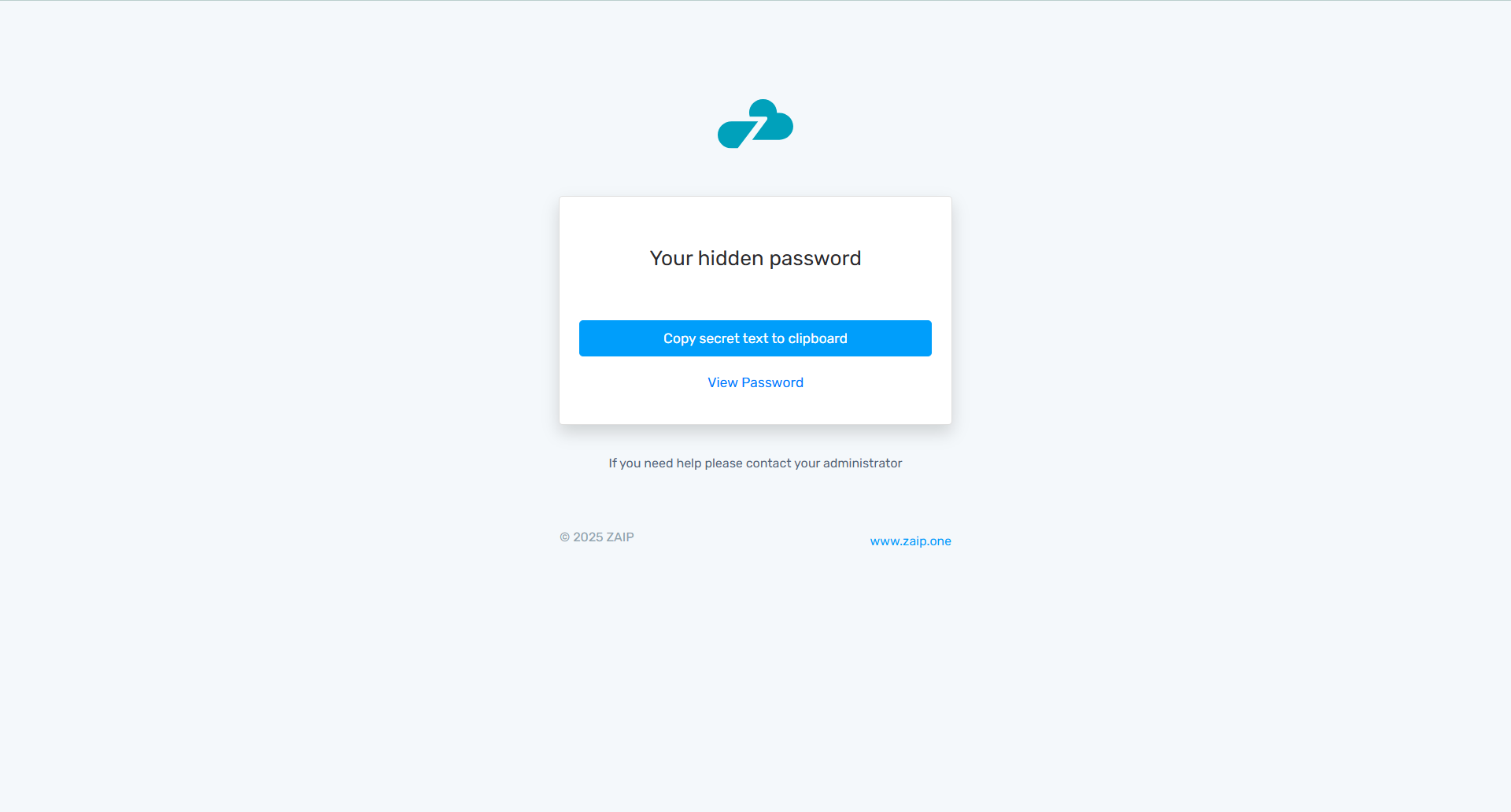
4) You will receive an email that looks like this. Click the View Password option.
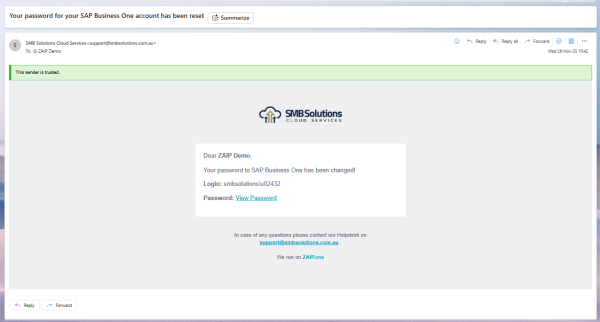
5) The link will open up your hidden password in a browser page. Click Copy secret text to clipboard.
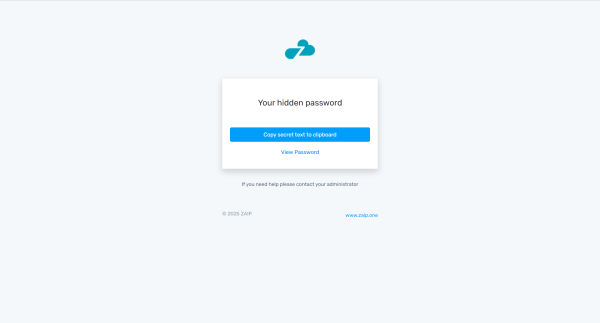
You can now use this new password to login to your SAP Business One. You can easily do this from the Remote Connector and Paste the new password when the login screen opens.
You can watch the ZAIP Quick Tips: Remote Connector – Reset Your Password video here.
If you have any questions or would like any assistance with ZAIP, please reach out to our Support team or submit a ticket in the Client Portal.