
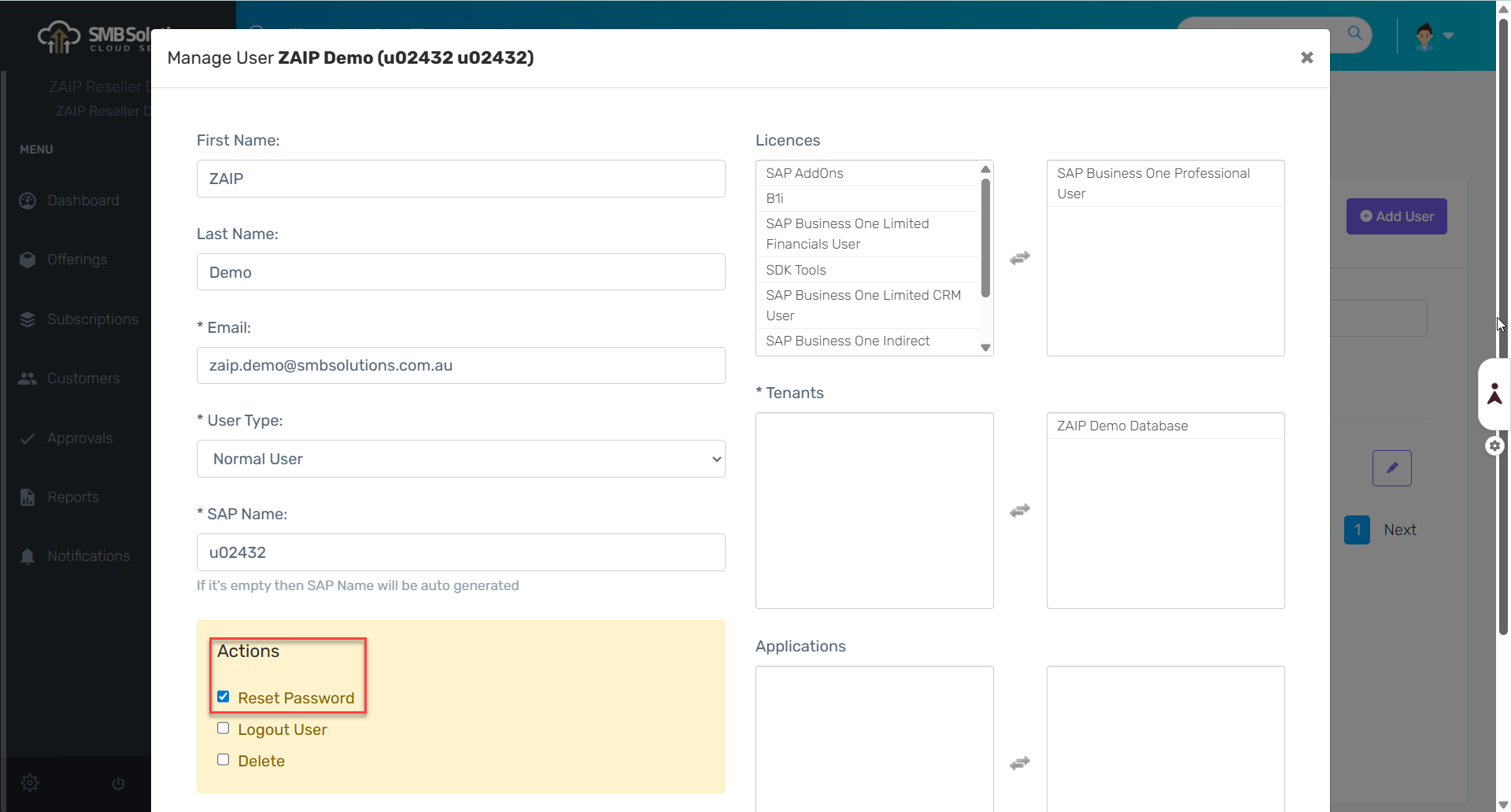
If a customer has asked you to reset their SAP Business One password, this is now easily done in the ZAIP Partner Portal. Here are the 5 easy steps!
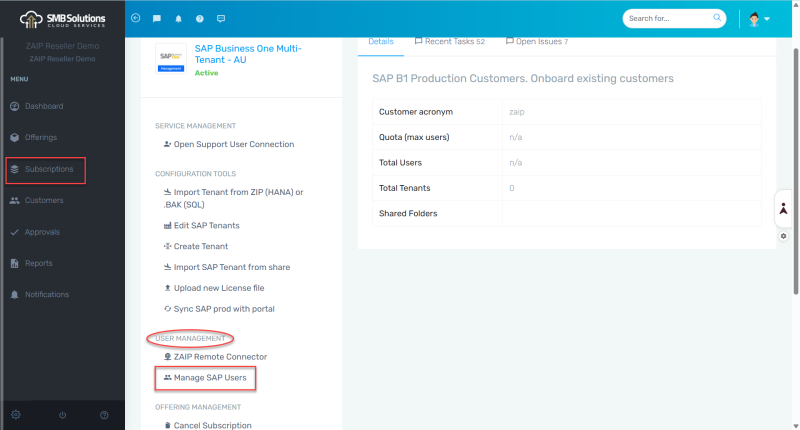
1) In the Active Subscription the user is a part of, click on Manage SAP Users under the User Management section.
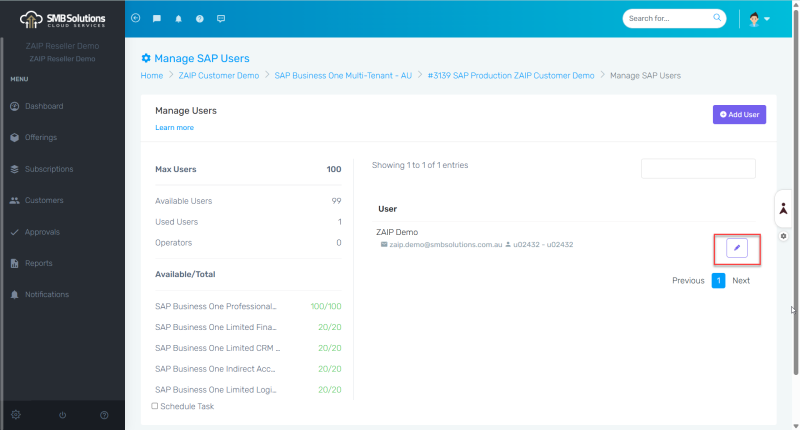
2) Click the Edit pencil symbol next to the user you want to reset the password for.
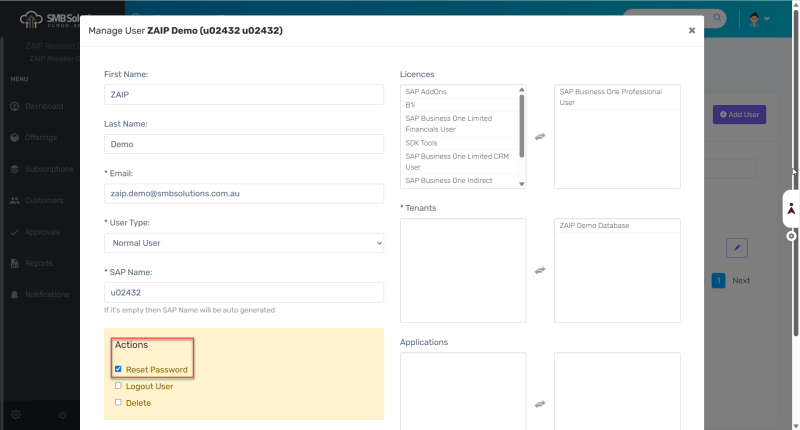
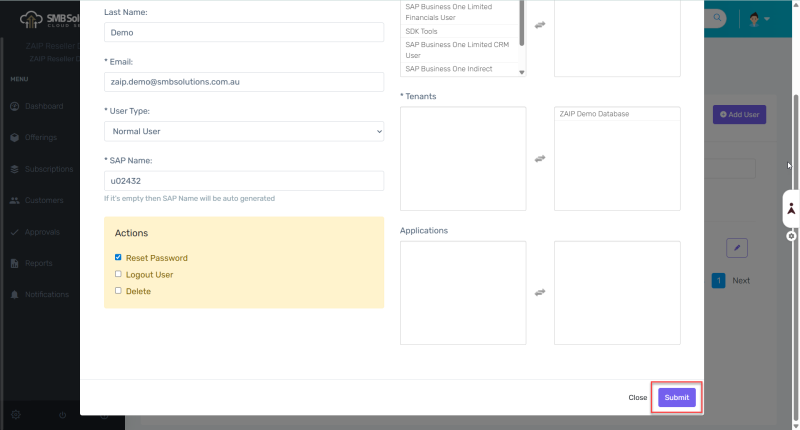
3) Check the Reset Password box under the Actions section.
4) Click the purple Submit button.
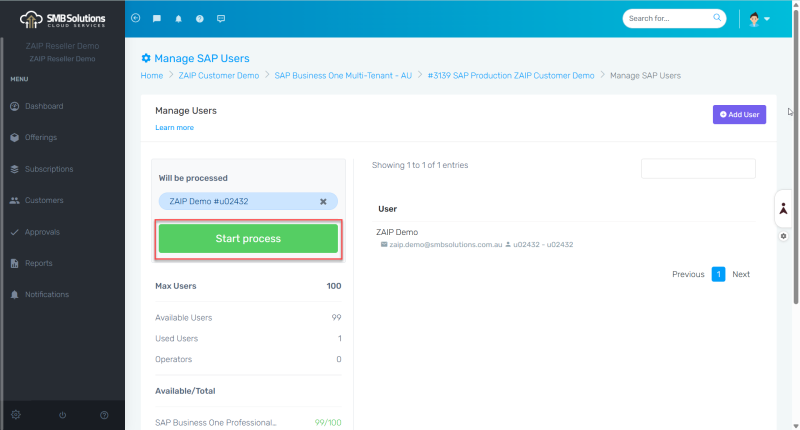
5) Click the green Start process button.
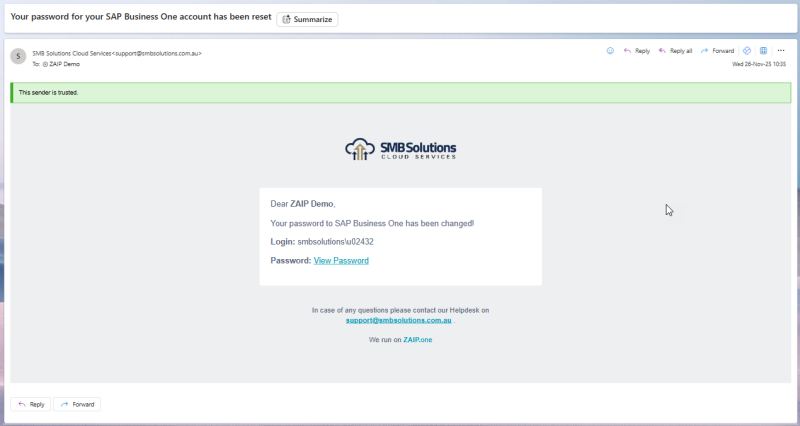
6) Once the process has been completed, the customer will receive the following email with their new password.
You can watch the ZAIP Quick Tips: Partner Portal – Reset a User Password video here.
If you have any questions or require any assistance, please reach out to our Support team or submit a ticket through the Client Portal.