
Managing SAP Business One tenants has never been easier with the ZAIP Partner Portal. SMB Solutions Cloud Services partners have access to free, 24/7 tenant management tools that eliminate support tickets, reduce delays, and put control back in the hands of resellers.
In this guide—part of the ZAIP Tenant Management Series—we walk through the key tenant-management capabilities available directly in the ZAIP Partner Portal, including:
-
Import a Tenant
-
Export a Tenant
-
Editing and Managing SAP tenants
Whether you’re preparing a customer for go-live or simply maintaining existing environments, the ZAIP Partner Portal gives you what you need—anytime, anywhere.
Why 24/7 Self-Service Tenant Management Matters
The ZAIP Partner Portal reduces friction, removes bottlenecks, and empowers partners to manage SAP Business One environments independently:
-
No waiting for support tickets
-
No additional costs
-
Full automation for imports, exports & copies
-
Clear, reliable tenant visibility
This level of control helps partners deliver a faster implementation experience, respond quickly to customer needs, and maintain consistent environments—day or night.
1. Import a Tenant
When working with your customers, you may need to import an existing tenant file—for example, when migrating a customer or restoring a demo environment. The ZAIP Partner Portal includes a step-by-step wizard to simplify this process.
How to Import a Tenant
-
Log in to the Partner Portal and open your customer’s active subscription.

-
Select Import a Tenant from ZIP (for HANA customers).
-
Enter the tenant name — e.g., Import Demo.
-
Choose the classification (Demo, Testing, or other) and select the service unit.
-
Attach a contact or add notes (optional).
-
Click Select File and upload the zipped tenant file. Upload time will vary depending on file size.
-
When the upload completes, click Finish followed by the green Process button.
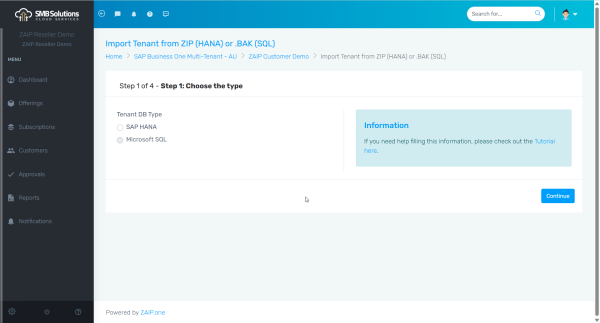
The ZAIP Partner Portal will then process the import task. You can continue working on other active Subscriptions or wait for the task to complete.
Once finished, the new tenant appears alongside your existing environments and you can confirm this under Edit SAP Tenant.
To watch the Quick Tips YouTube tutorial video, click here.
2. Export a Tenant
Exporting a tenant allows you to back up an environment, migrate it, or store a copy offline.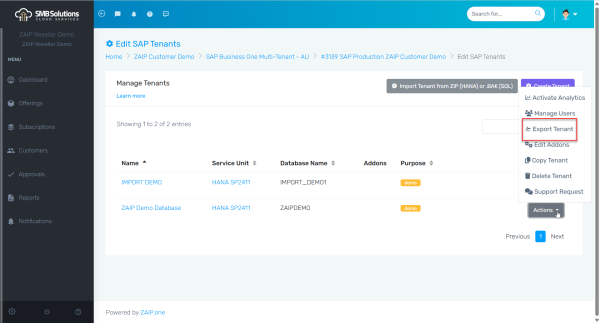
-
Open the customer’s active Subscription and navigate to Edit SAP Tenants.
-
Select the tenant you wish to export.
-
Click Actions → Export Tenant.
-
Confirm when prompted.
The export process begins once you click Process. Once completed, the tenant ZIP file is placed into your Partner PCTR folder, just like exports from the CCC.
Note: If you’re unsure of your PCTR folder location, the SMB Solutions support team can assist.
To watch the Quick Tips YouTube tutorial video, click here.
3. Editing and Managing SAP Tenants
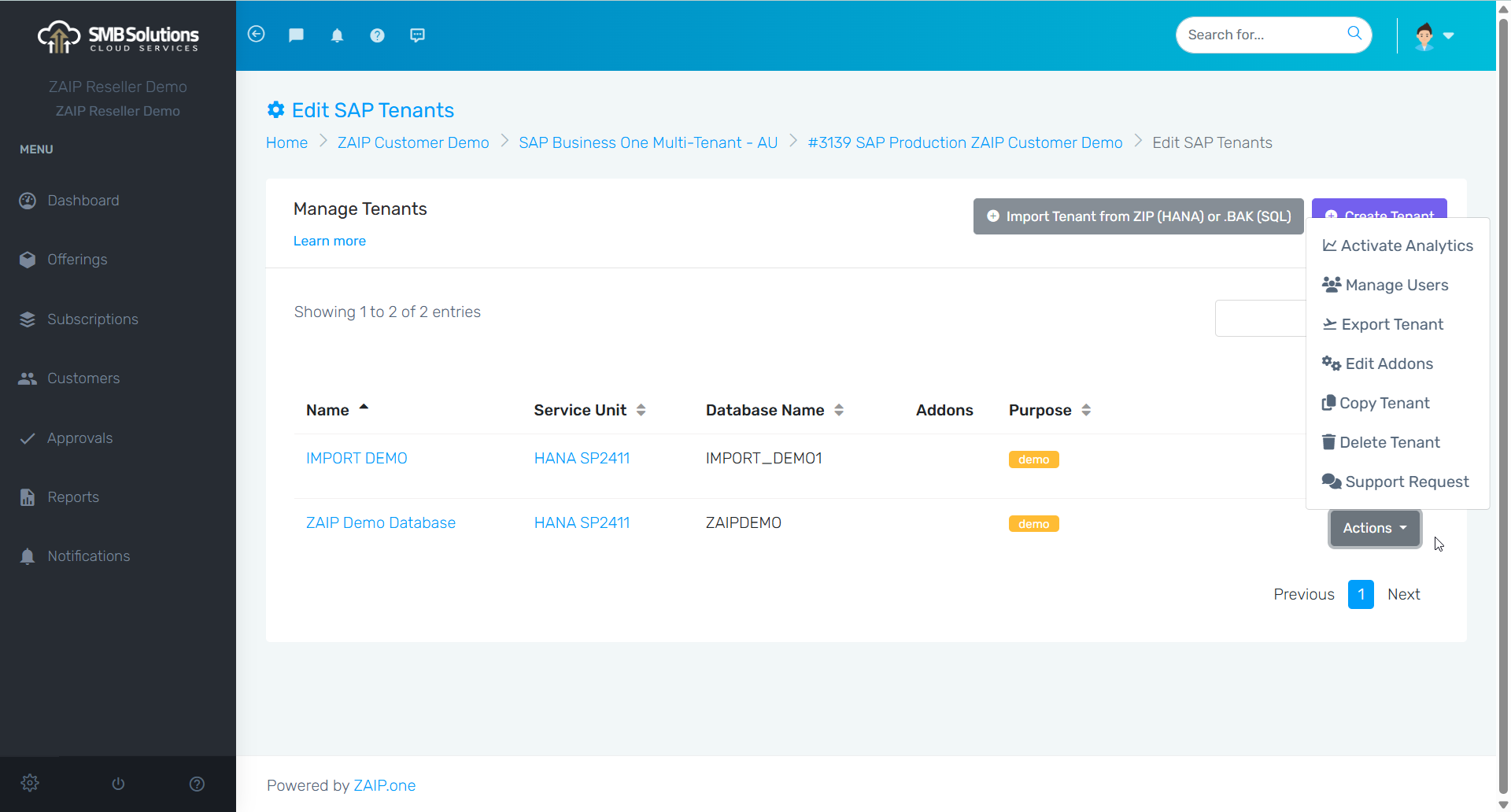
The Edit SAP Tenants area is the central management hub for all environments belonging to a customer. From here, partners can perform a wide range of actions including:
-
Manage Users
-
Export Tenant
-
Edit Addons
-
Copy Tenant
Need Assistance? We’re Here to Help
While the ZAIP Partner Portal gives you comprehensive self-service tools, the SMB Solutions Cloud Services support team is always available if you have questions or need guidance.
You’re never on your own—but now, you also never have to wait.
Click here to view the full Quick Tips YouTube video playlist or reach out to our support team for assistance.