
Managing SAP Business One users and license files doesn’t need to be complex or time-consuming. With the ZAIP Partner Portal, partners can quickly adjust license types and upload new license files—all within a streamlined, secure interface designed for efficiency.
This guide brings together two key workflows from our ZAIP User Management series to help you confidently manage SAP Business One licensing for your customers.
Effortless SAP Business One User Management
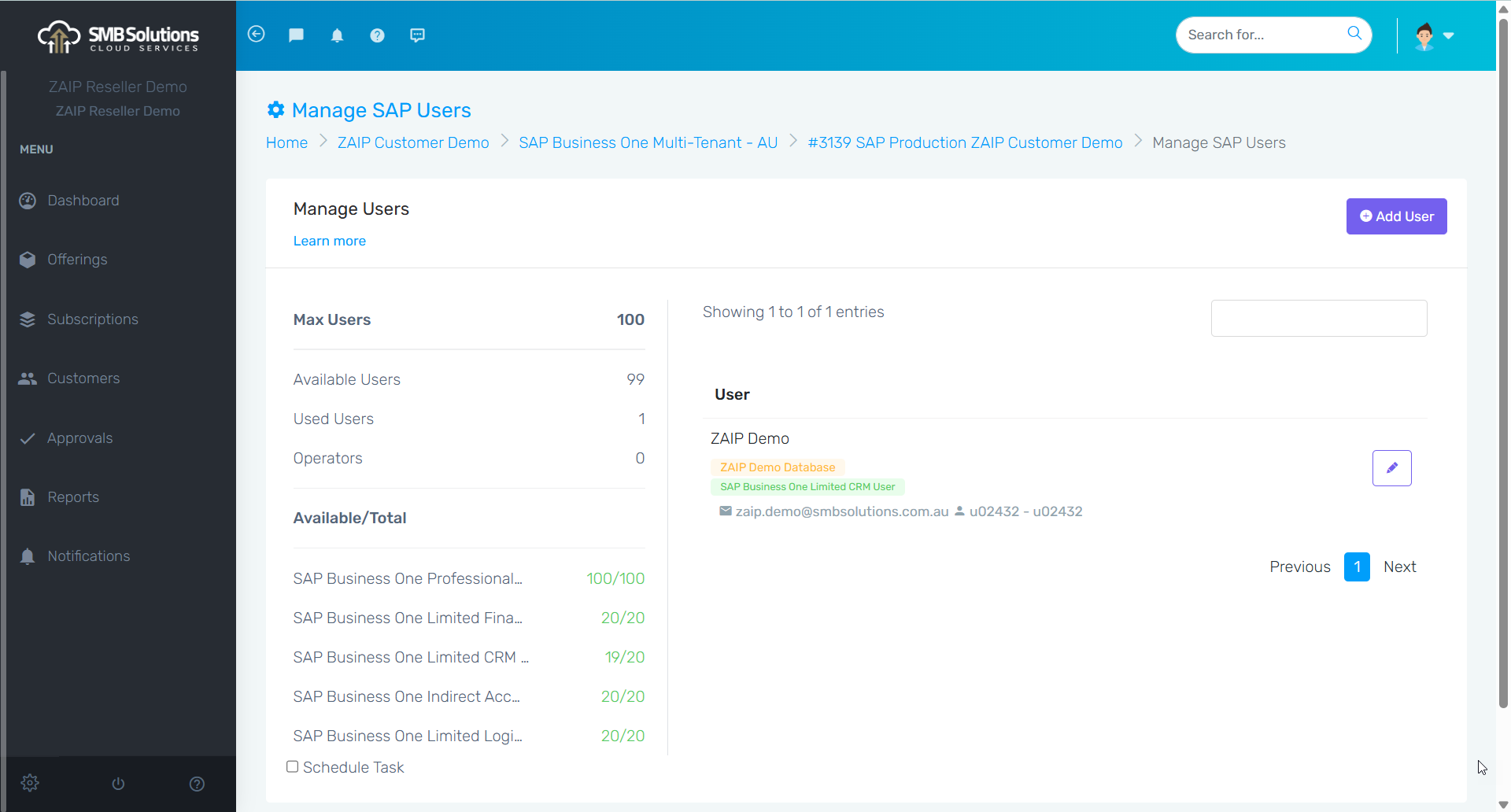
The ZAIP Partner Portal gives partners direct control over SAP users inside each customer’s subscription. From the dashboard, simply open the relevant active Subscription to begin managing users.
A Clear View of License Usage
Within Manage SAP Users, you’ll instantly see:
-
Total available licenses
-
Number of licenses currently in use
-
Breakdown of license types (Professional, Limited Logistics, etc.)
For demo environments, this may look a little different—but for live customers, this section accurately reflects the customer’s licensed entitlements.
Editing and Maintaining Users
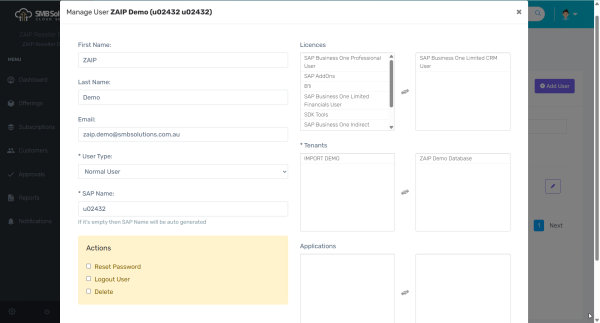
The user list provides key details at a glance—username, email, SAP user code—and includes tools for administering each user.
Click the pencil icon to open the user profile, where you can:
-
Update the user’s name or email
-
Change their user type (Normal vs. Power User)
-
Reset their password
-
Force logout or kill a dead session
-
Delete the user entirely
On the right-hand side, you’ll see which tenants/databases the user currently has access to, with simple controls to add or remove access as needed.
Changing SAP License Types
License changes are just as easy: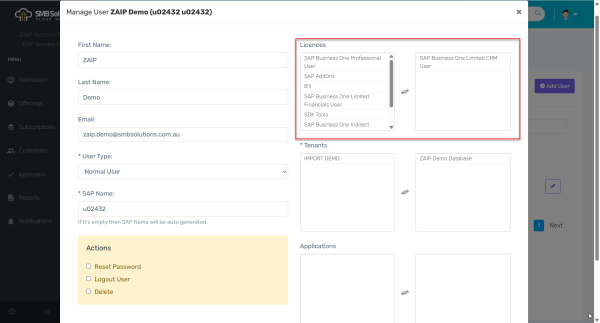
-
Remove the current license type by clicking it on the right-hand side (e.g., Professional)
-
Add the new license type by clicking it on the left-hand side (e.g., Limited CRM)
-
Click Submit to save the change
-
Click Start the process to push the task through to the CCC
You can queue multiple user changes before pushing them through—just remember that the more tasks you stack, the longer the processing time may be. You’re free to continue working in ZAIP on other active Subscriptions while the tasks complete in the background.
Once processed, return to Manage SAP Users to confirm the updated license status. Changes apply immediately after successful processing.
Click here to watch the Quick Tips YouTube tutorial video.
Uploading a New SAP License File
Keeping license files current is essential for ensuring your customers’ SAP Business One environment continues running smoothly. The ZAIP Partner Portal makes license file management straightforward.
Open the customer’s active subscription, where you’ll see the menu option to Upload new license file.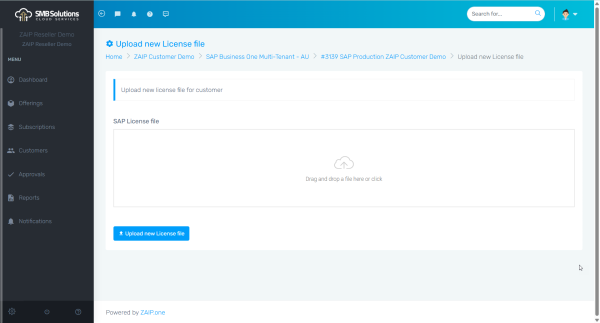
-
Select the prepared license file.
-
Click Upload New License File.
-
Wait for processing or continue working—ZAIP handles it seamlessly.
Once complete, you’ll see a confirmation that the license file has been successfully uploaded.
Click here to watch the Quick Tips YouTube tutorial video.
You can verify your upload by returning to the Manage SAP Users section. The license totals will automatically update to reflect any new license quantities included in the file.
Why the ZAIP Partner Portal Makes License Management Better
-
Centralised Control – Manage users, roles, tenant access, and license files from one secure platform.
-
Real-Time Accuracy – License usage reflects exactly what your customer is entitled to.
-
Fast Provisioning – Push tasks to the CCC and continue working while the platform processes updates.
-
Partner-Friendly Workflow – Designed with SAP partners in mind: intuitive, consistent, and transparent.
Need Assistance? We’re Here to Help
If you have questions about user management, license uploads, or anything else related to the ZAIP Partner Portal, the SMB Solutions Cloud Services support team is always ready to assist.
Click here for the full Quick Tips YouTube tutorial video playlist.