
The ZAIP Remote Connector is a free tool that enables SAP Business One users to easily access and manage their SMB Solutions cloud-hosted environment. Whether you’re opening your SAP Business One instance, closing inactive sessions, or resetting your password, the ZAIP Remote Connector provides quick access right from your desktop.
In this guide, we’ll walk through how to install, configure, and use the ZAIP Remote Connector.
What Is the ZAIP Remote Connector?
The ZAIP Remote Connector is a free desktop application available only for SMB Solutions Cloud Services customers, that connects you directly to your SAP Business One environment. Once installed, it provides:
-
One-click access to SAP Business One
-
Tools to close stalled or inactive sessions
-
Password reset option
-
Automatic startup, so it’s always ready in the background
It’s designed to make cloud access simple and reduce the need for manual support intervention.
Receiving Your Connector Invitation
Before installing the connector, you’ll receive an email from either: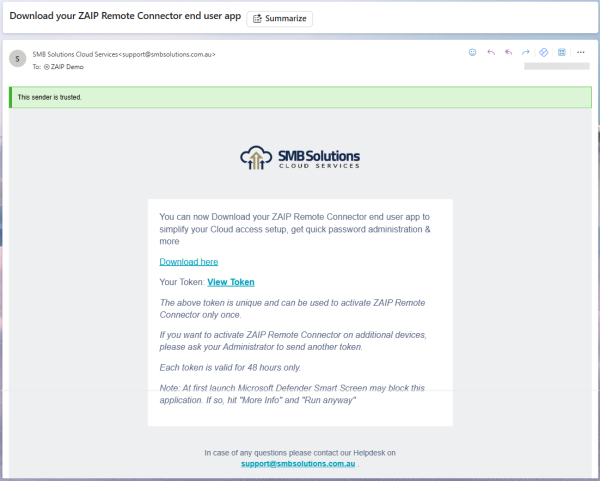
-
Your SAP partner, or
-
The SMB Solutions Support Team, via the ZAIP Partner Portal
This email contains two important items:
-
A Download link for the ZAIP Remote Connector application
-
Your Private Access Key (token) used to authenticate the program
When you receive the email, click Download to get started.
Installing the ZAIP Remote Connector
Once the file downloads, follow these steps:
Step 1: Run the Installer
Click the downloaded file to launch it.
Your operating system may warn that it “doesn’t recognise the application.” This is expected, and the connector is safe to install.
Click:
-
More Info
-
Run Anyway
Step 2: Enter Your Private Access Key
The installer will prompt you for your Private Access Key.
To find it:
-
Return to your email
-
Click View Token
-
Copy the token provided
-
Paste it into the Private Access Key field in the installer
Step 3: Confirm User Code & Settings
Before continuing:
-
Ensure the User Code displayed matches what you expect (e.g., U02432)
-
Leave Run at startup enabled, so the connector is always available
Click Continue to complete the configuration. You should receive a success message.
Accessing and Using the ZAIP Remote Connector
Once installed, the connector runs quietly in your taskbar. You can access it by clicking the ZAIP icon.
Right-clicking the icon reveals several useful options:
1) Open SAP Business One
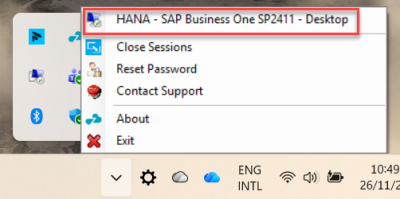
Launch your SAP Business One environment directly from the connector—no need to open a browser.
2) Close Sessions
If you left a session open during lunch or at the end of the day, it can become “stuck.”
Use Close Sessions to:
-
Terminate any inactive or dead sessions
-
Reset your connection
-
Prevent login issues
The connector will confirm before closing your sessions and notify you when the process is complete. A Quick Tips YouTube tutorial video is available here.
3) Reset Password
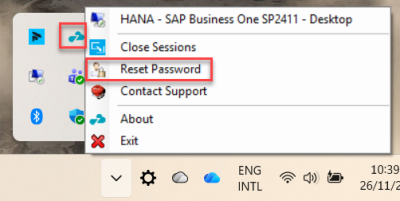
Forgot your password? The connector allows you to reset it without contacting support. Click here for the Quick Tips YouTube tutorial video.
Need Help?
-
Contact the SMB Solutions Support Team if you run into any issues
-
Reach out to SMB Solutions or your SAP partner to request a new connector email
- Watch the tutorial video here
The ZAIP Remote Connector is a powerful but simple tool designed to give SAP Business One users more control over their cloud environment, 24/7. With fast access, session management, and built-in support options, it streamlines daily workflows and helps keep your system running smoothly.
Reach out to our team today for more information or for a ZAIP Remote Connector download!